 LunaDash
Ready to use.
Yours to shape.
LunaDash is an open-source Linux Wayland desktop environment: a wlroots compositor and a shell written in Slint. Workspaces grow with your windows, tiling fills the screen or scrolls like niri, and the panel, dock, wallpapers and colours are yours to change.
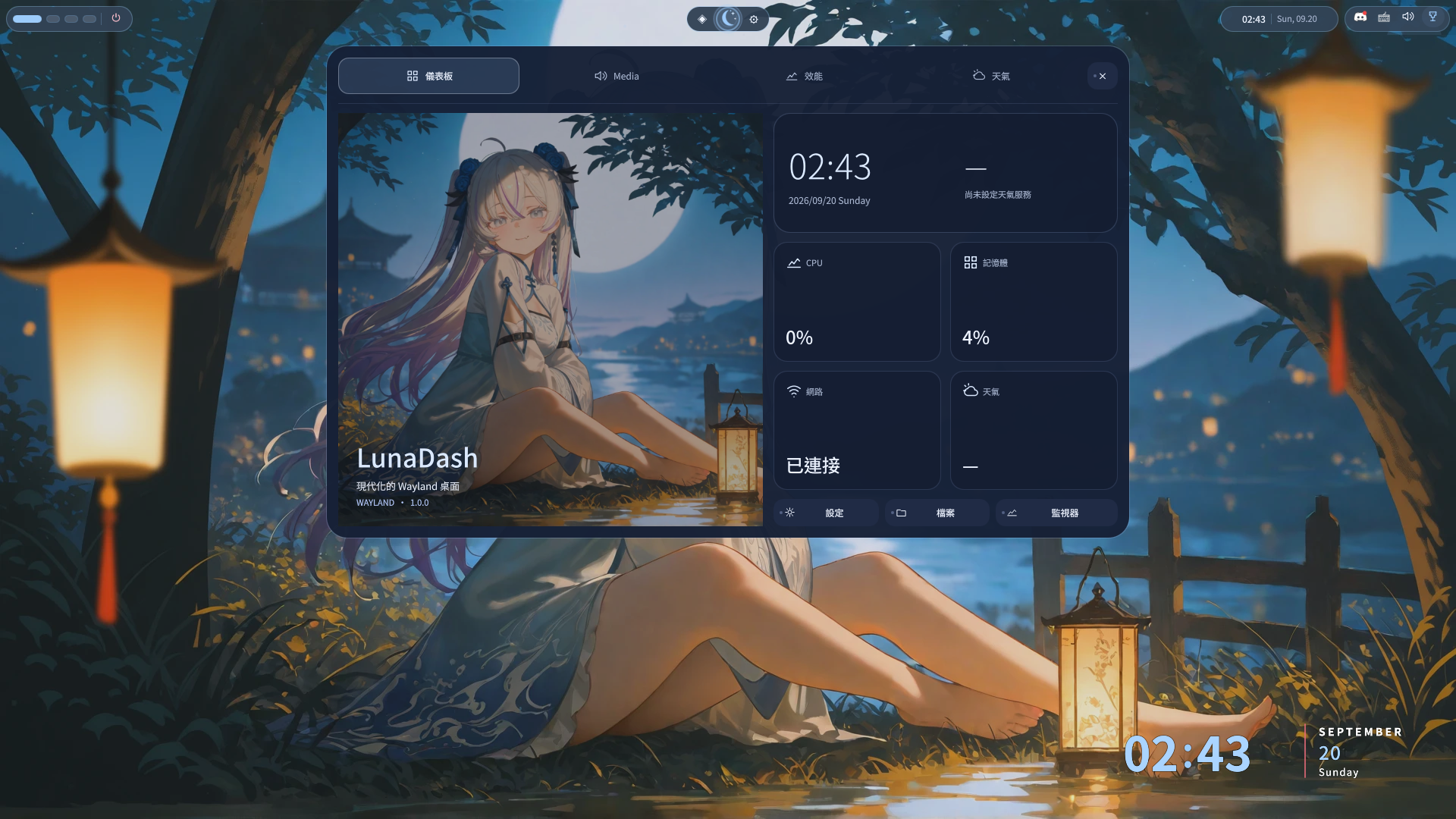
Start with a desktop.
A panel, launcher, notifications, settings and file tools are already part of the experience. Dismiss the welcome screen and settle into your workspace.
Your first login ↓Make it your own.
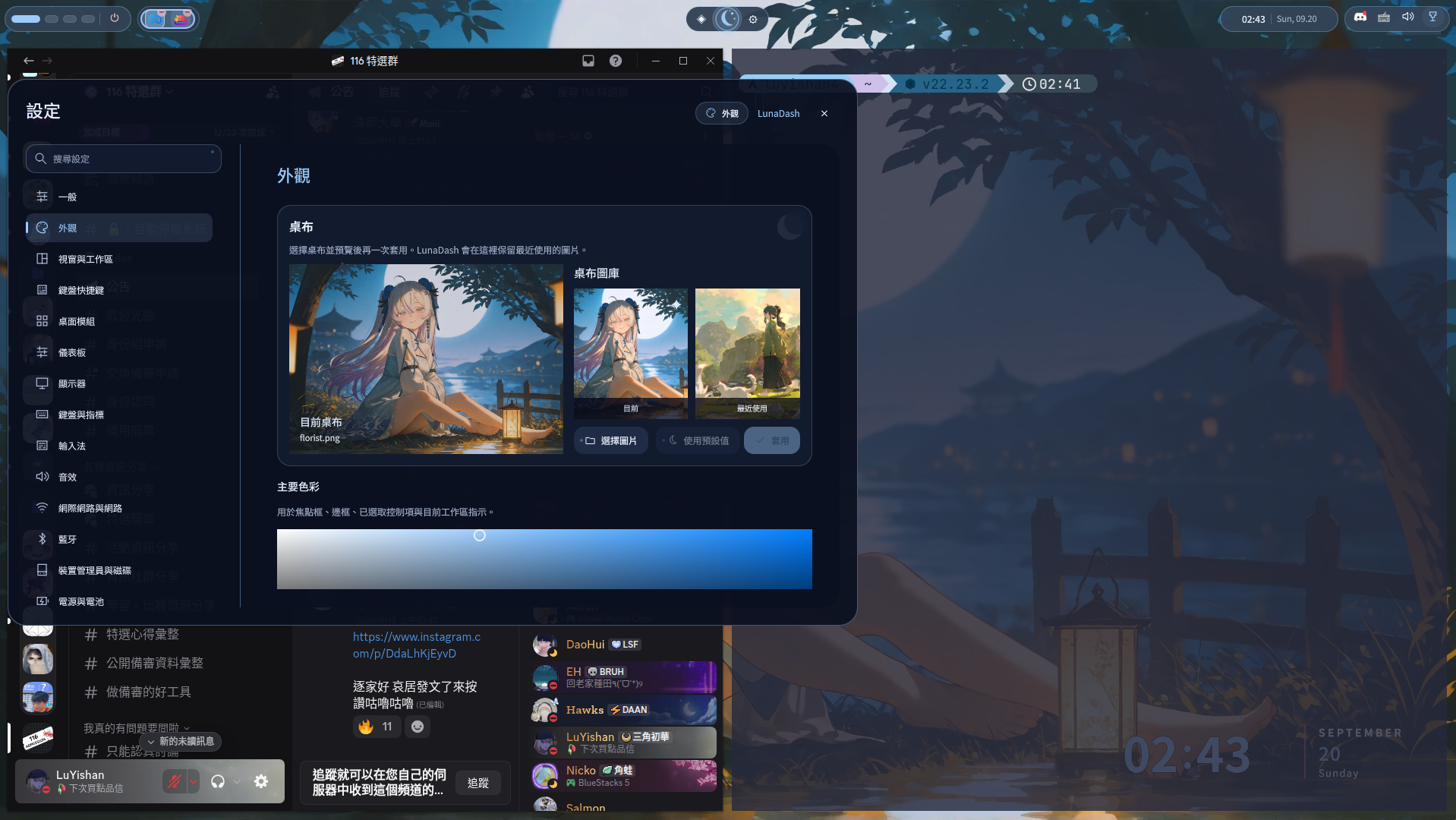
Choose colours, glass, panel, dock, tiling and wallpapers in Settings. Go further by editing the Slint shell on SlintLu or scripting the local control interface.
Explore customization ↗One desktop. Your way.
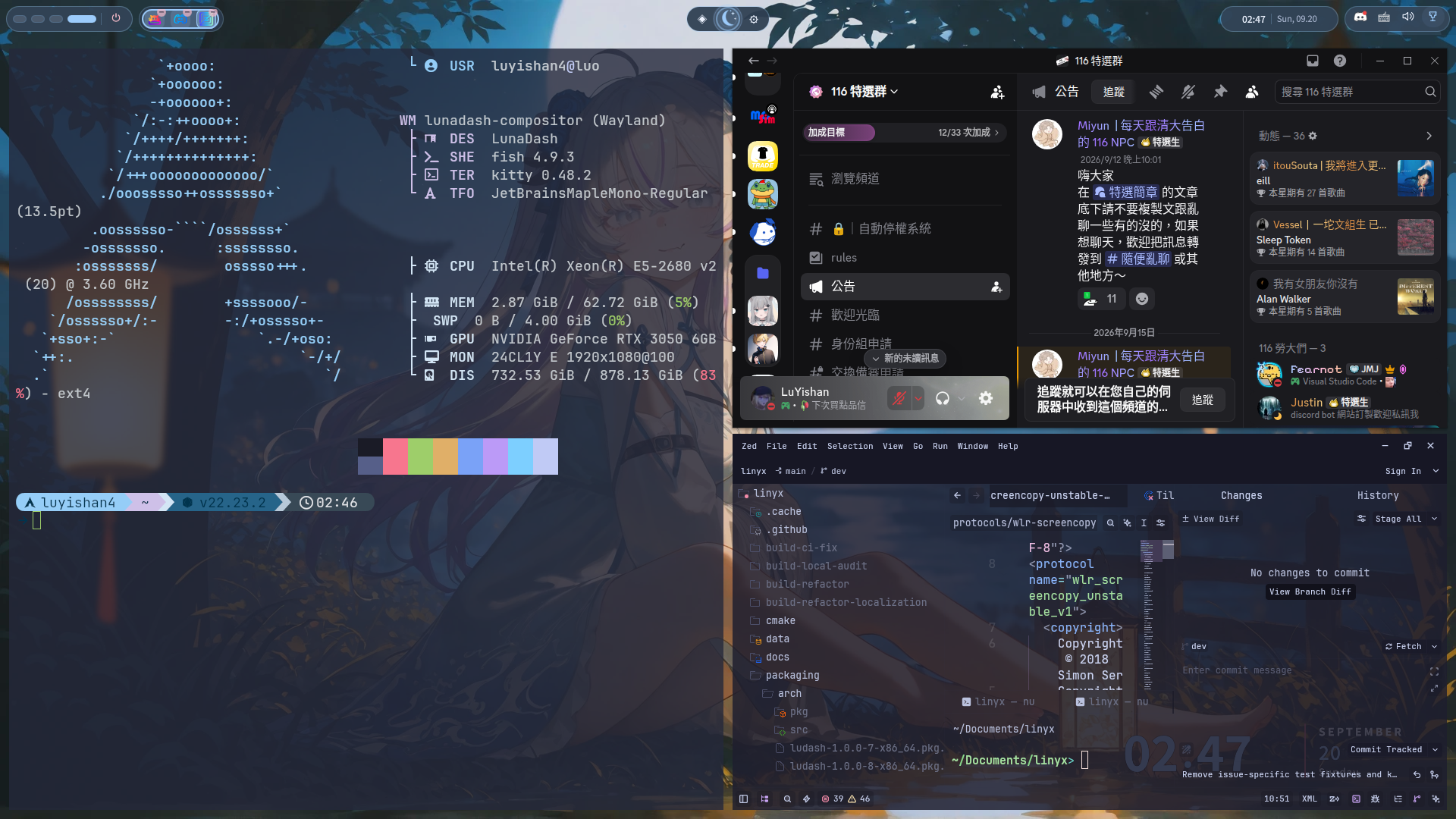
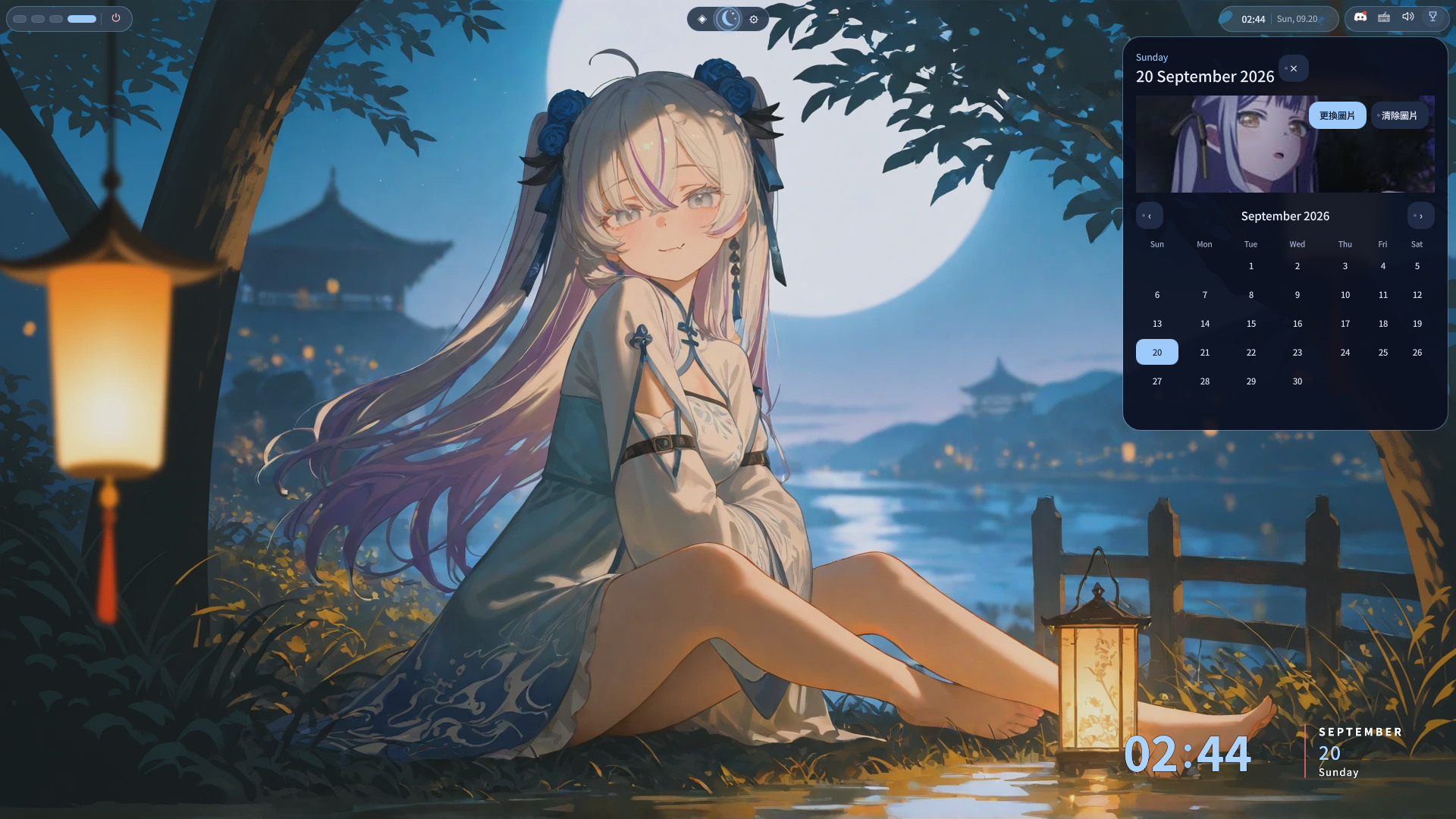
Actual screenshots from September 20, 2026.
Select an image to take a closer look.
Choose your installation.
Clone the development branch, then run ./scripts/install-session.sh. It handles dependencies, builds LunaDash and installs the login session.
git clone --branch dev https://github.com/LuYishan-4/LunaDash.git
cd LunaDash
./scripts/install-session.sh
Log out and choose LunaDash in your display manager. Use ./scripts/install-session.sh --dry-run to preview the installation. Options and recovery steps are in the installation guide.
On NixOS, use the flake and NixOS module with programs.lunadash.enable = true. Updates and rollback use NixOS generations.
Video wallpapers need mpvpaper. Native plugins stay disabled by default and execute without a sandbox when enabled.
Getting started
The first login guides you through language, network and appearance. Then tap Super for the launcher, open the dashboard from the moon button and Settings from the gear.
Keyboard shortcuts
Super is the Meta key. The desktop guide lists every shortcut.
| Shortcut | Action |
|---|---|
Super (tap) / Super + D | Open the launcher |
Super + T / E | Terminal / file manager |
Super + W | Wallpaper library |
Super + Shift + S | Select a screenshot region (Escape cancels) |
Super + H / L | Focus the column to the left / right |
Super + Shift + H / L | Move the window into the left / right column |
Super + Shift + Space | Switch tiling between Fill and Normal (niri-like) |
Super + F | Maximize one window or restore the workspace |
Super + C / M | Close / minimize the focused window |
Alt + Tab | Every window in the taskbar; release Alt to switch |
Super + Tab | Workspaces; release Super to switch |
Super + 1–9 / 0 | Switch workspace; add Shift to move the window |
Alt + left-drag | Move directly; add Shift to resize |
While you test in a nested session, your host desktop may intercept Super shortcuts first.
Help shape the desktop.
Help make the default experience useful and customization approachable. Code, design feedback, documentation and bug reports all move LunaDash forward.
Pull requests target dev. Choose a clear title, describe the user-visible change and the validation actually run, and include matching docs and website content updates. Do not change GitHub workflows or generated release notes; describe release impact in the PR body. Explain whether the change affects the defaults or an optional customization.
Contributors
LunaDash is maintained by one person, with code, documentation and testing help from the community.
Open an issue or a pull request on GitHub to take part.